So you downloaded JobDex. Let me walk you through it.
I wrote this to be the guide I wish every tool came with — no marketing, just how things actually work.
This is v0.1. I shipped it when the core things worked well — contacts, pipeline, email, templates — rather than waiting for everything to be perfect. This guide covers what's live today, and is honest about what's not there yet.
Before you start
Supported operating systems:
- macOS — Apple Silicon (M1 and later)
- Windows 10 or later (64-bit)
- Linux (x86_64) — AppImage, .deb, and .rpm packages available
Not supported yet:
- macOS on Intel (x86_64)
- Mobile (iOS / Android)
I built this as a desktop app deliberately — your data stays on your machine, no account needed, no cloud dependency. The only time you need internet is when you're sending emails or connecting your email account for the first time.
I develop primarily on a Mac with Apple Silicon, so that's where things are most tested. Windows and Linux builds are generated from the same codebase and should work well, but if you hit something platform-specific, let me know.
Download & install
macOS (Apple Silicon)
Head to the GitHub Releases page and download the .dmg file for the latest
version.
Open the .dmg, drag JobDex into your Applications folder, and launch it.
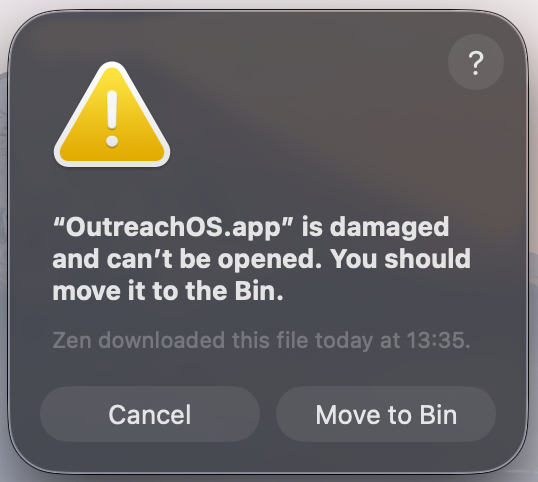
"JobDex is damaged and can't be opened" — here's the fix
macOS will show this error on Ventura (13) and later when you try to open the app. It sounds worse than it is. The app isn't actually damaged — macOS is blocking it because it isn't signed with an Apple Developer certificate yet.
The fix takes about 30 seconds and you only need to do it once.
-
Open Terminal Press ⌘ + Space to open Spotlight, type "Terminal", and press Enter.
-
Run this command Copy and paste the following line into Terminal and press Enter:You won't see any output. That's normal — it means it worked.
xattr -cr /Applications/JobDex.app -
Open the app Go back to your Applications folder and open JobDex normally. The error won't appear again.
What does that command actually do?
When you download anything from the internet, macOS attaches an invisible tag to the file called a
quarantine attribute. On unsigned apps, newer versions of macOS refuse to open files with this tag.
The xattr -cr command removes it. That's all it does — it doesn't change the app itself in
any way.
"JobDex wants to use your confidential information..." — the keychain prompt
The first time you launch JobDex, macOS will show a prompt asking for your login password to access your "Keychain." I'll be honest: it looks a bit official and scary, but it's actually a sign that your data is being protected correctly.
JobDex needs this because it stores its encryption key inside your computer's secure Keychain. This key is what keeps your database locked and safe from prying eyes. JobDex never sees or saves your login password — macOS handles the whole process securely.
When the prompt appears, enter your macOS login password and click "Always Allow".
If you click "Allow," macOS will ask you for the password three times in a row. Clicking "Always Allow" saves you the repetition and lets macOS know you trust the app to use its own encryption key.
Since the key stays inside your OS keychain, you don't need to worry about it being stolen or leaked. It's the most secure way to handle encryption on a Mac, and that's exactly why I chose to build it this way.
Intel Macs are not supported in the current release.
Windows (64-bit)
Download the .exe installer from the GitHub
Releases page and run it.
Windows may show a SmartScreen warning that says "Windows protected your PC." This happens for the same reason as the macOS warning — the app isn't signed yet. Click "More info" and then "Run anyway."
The installer will place JobDex in your Start menu and optionally on your desktop.
Linux (x86_64)
Three package formats are available from the GitHub Releases page:
JobDex_0.2.0_amd64.AppImage— runs on any distro, no installation needed. Make it executable (chmod +x) and run it.JobDex_0.2.0_amd64.deb— for Debian, Ubuntu, and derivativesJobDex-0.2.0-1.x86_64.rpm— for Fedora, RHEL, openSUSE, and derivatives
Where does my data live?
On macOS: ~/Library/Application Support/com.jobdex.desktop/
On Windows: C:\Users\YourName\AppData\Roaming\com.jobdex.desktop\
On Linux: ~/.local/share/com.jobdex.desktop/
Your entire contact database lives in that folder as an encrypted file called jobdex.db.
I chose SQLCipher (encrypted SQLite) specifically so your data is protected even if someone gets access to
this file. JobDex never phones home — nothing leaves your machine.
Your first look at the app
When JobDex opens, you'll see a mostly empty interface. That's intentional — I didn't want to fill it with fake sample data. Here's what you're looking at:
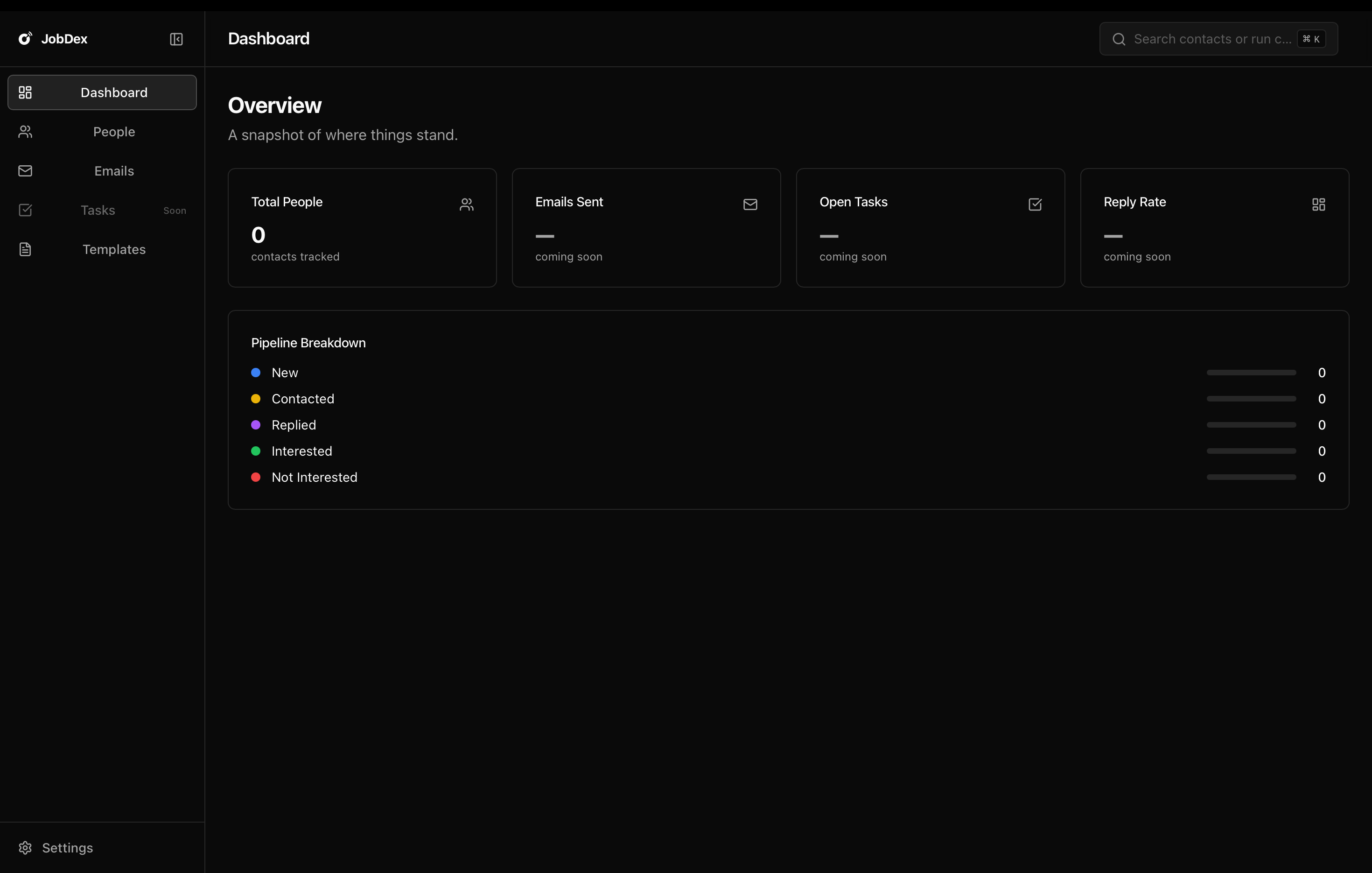
Sidebar (left): This is how you navigate. I kept it minimal — People (your contacts) and Templates are where you'll spend most of your time. The other pages — Emails, Tasks — exist as placeholders. I'm building those next.
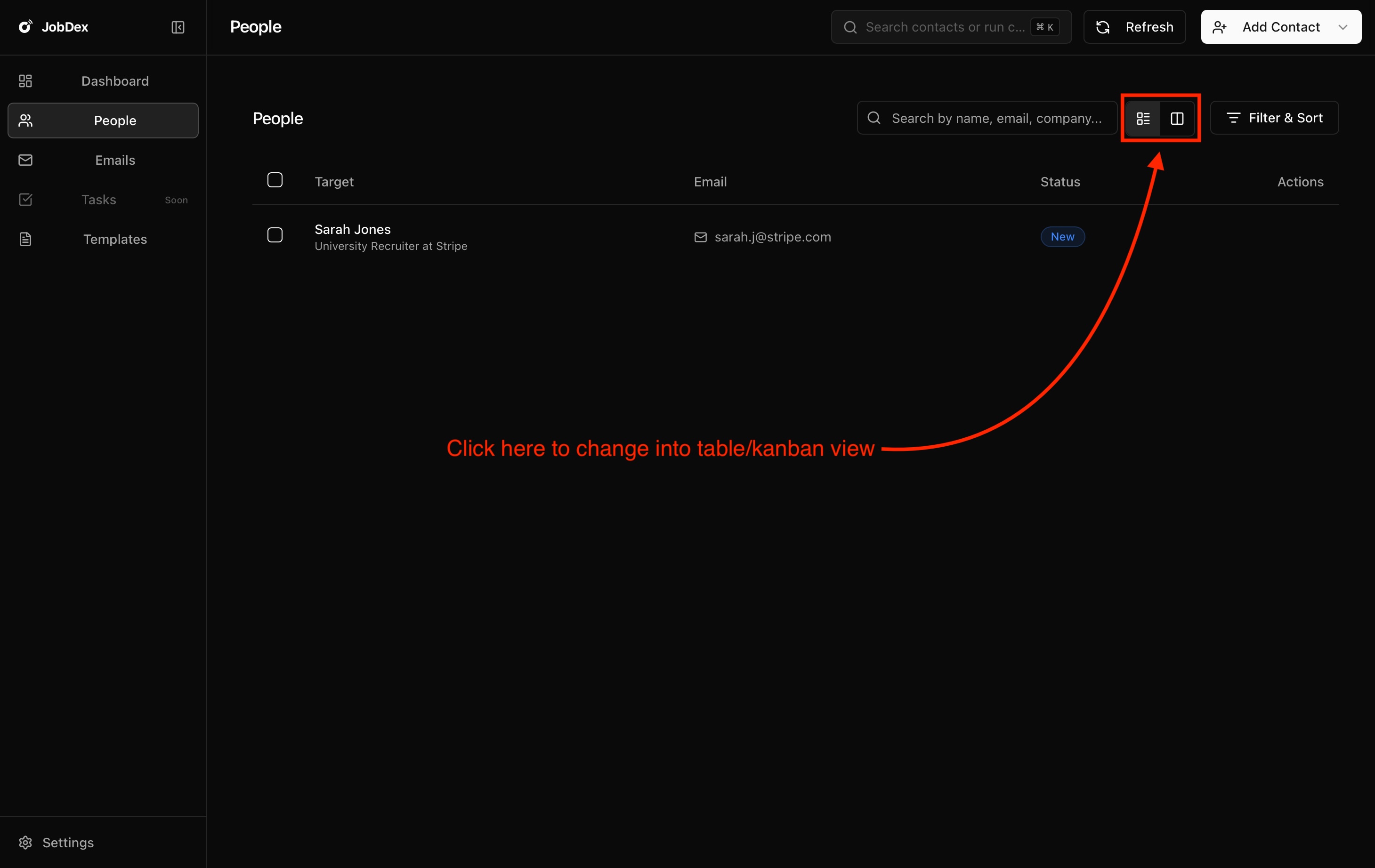
People page: Your contact database. Starts empty. Supports two views — a table and a Kanban board. Toggle between them with the icons in the top right.
Dashboard: Partially built. I have plans for it, but I wanted to ship the core workflow first. For now, go straight to People.
Settings (bottom of sidebar): This is where you connect your email, configure your pipeline stages, and manage security. You'll visit it once during setup, and probably forget it exists after that — which is the goal.
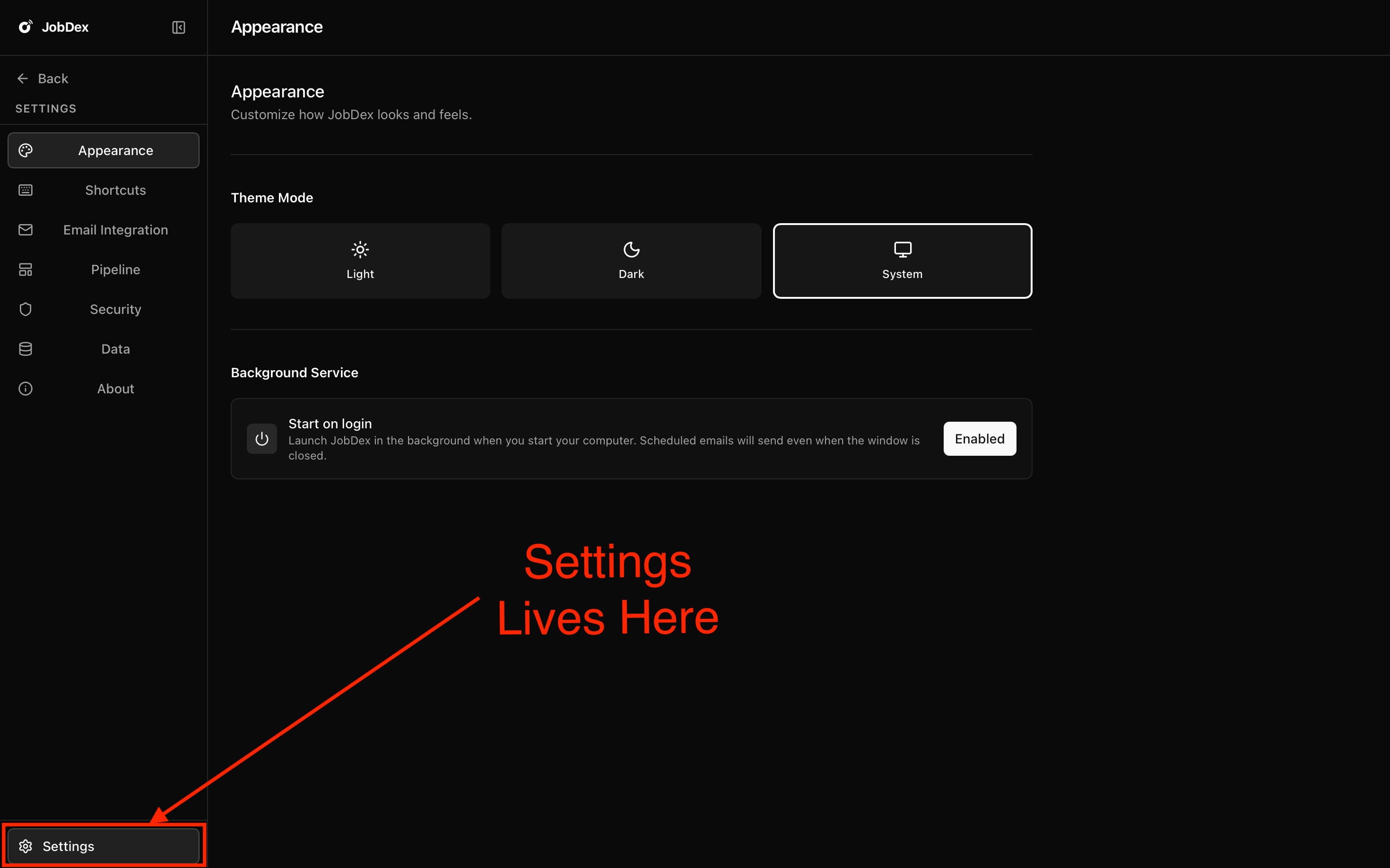
Before you do anything else, go to Settings and connect your email account. Everything else depends on that.